GPT-5.5 got me to try Codex again. These five features help me stay in the flow by bringing the work, previews, and feedback into the same workspace. Shorter feedback loops mean I can see what needs changing, make the change, and keep going.
Goal Mode
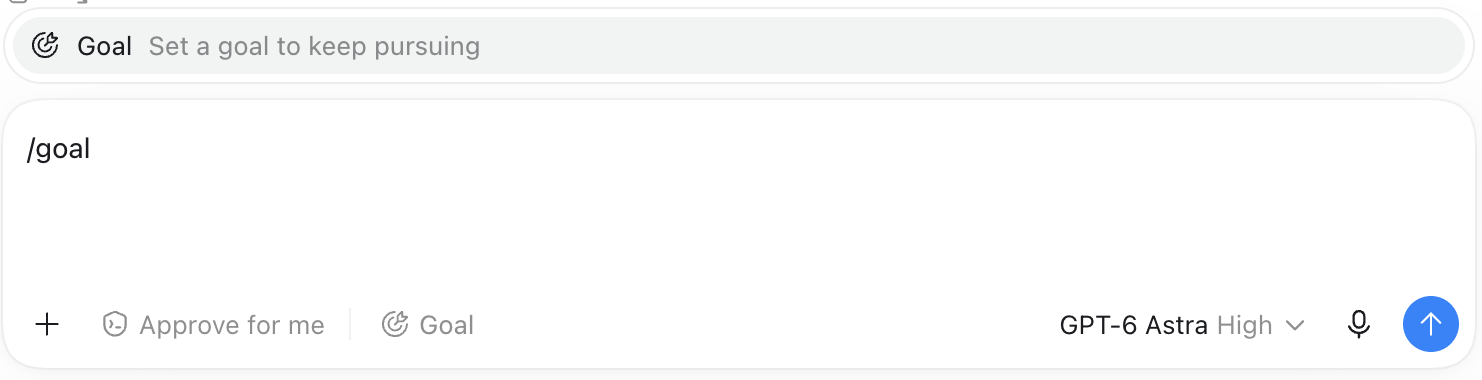
Give Codex an outcome and success criteria. It keeps working toward them.
Use it when: A task has a clear finish line but needs several steps, like getting a page ready to launch or fixing failing tests.
Tip: Include checks it can run, such as passing tests or working links.
Activate
Click Goal in the composer or type /goal, then describe the outcome and success criteria.
Appshots
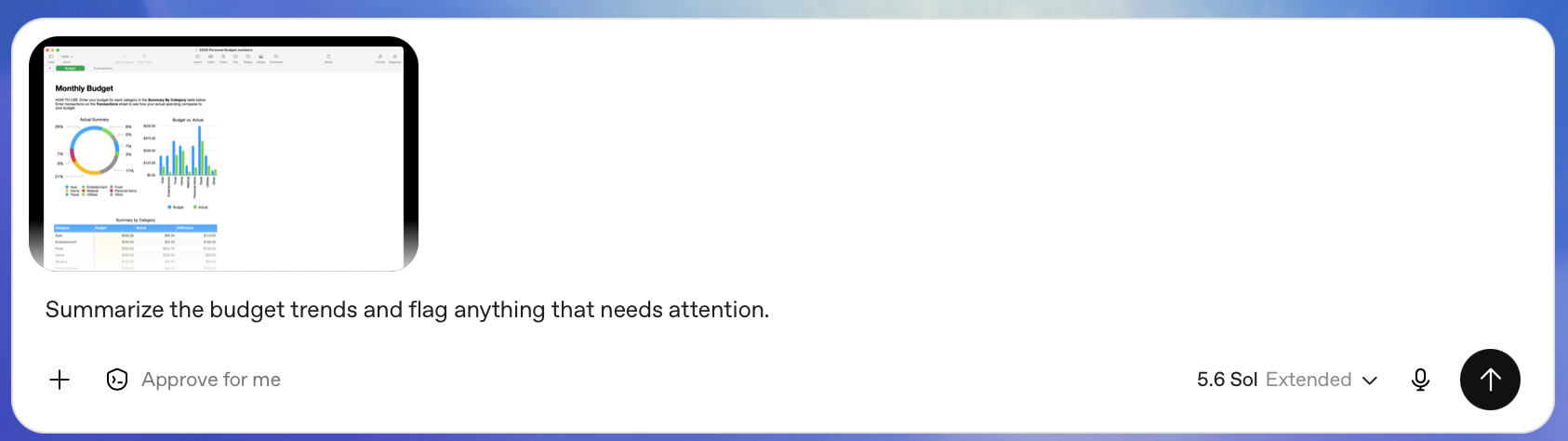
Capture an app window with its screenshot and available context attached to your Codex conversation.
Use it when: You want help with something already on screen, like a spreadsheet, dashboard, or design.
Activate
Bring the app window to the front, press both ⌘ keys together, then ask about what you captured.
Browser Annotations
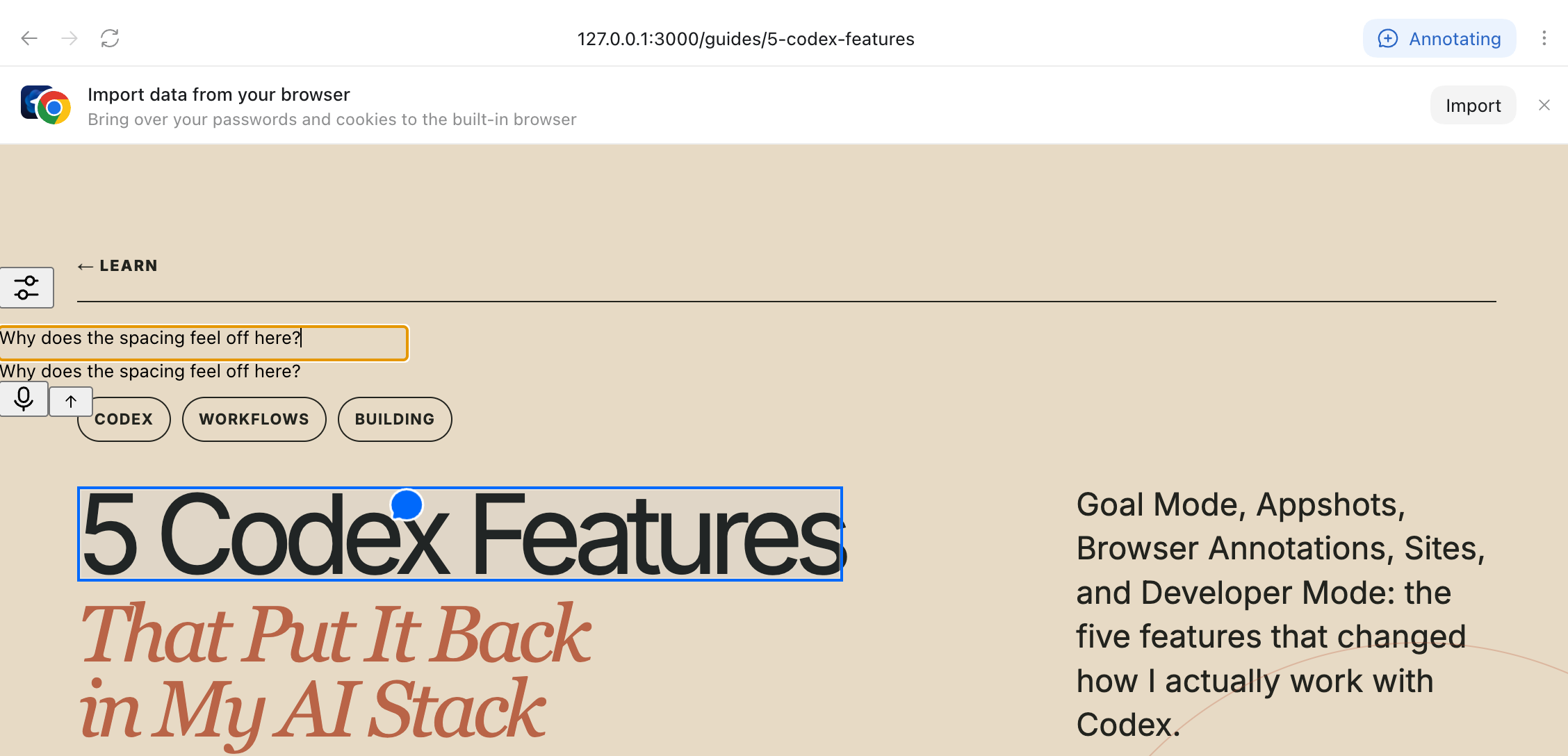
Point at a page element and leave feedback directly on it.
Use it when: You want to change specific copy, spacing, alignment, or a component without explaining where it is.
Tip: ⌘ + Enter queues annotations so you can send several together.
Activate
Open the page in Codex’s browser. Press ⌘ + . on macOS or use Annotating, select an element, and type your feedback. Press Enter to send.
Sites
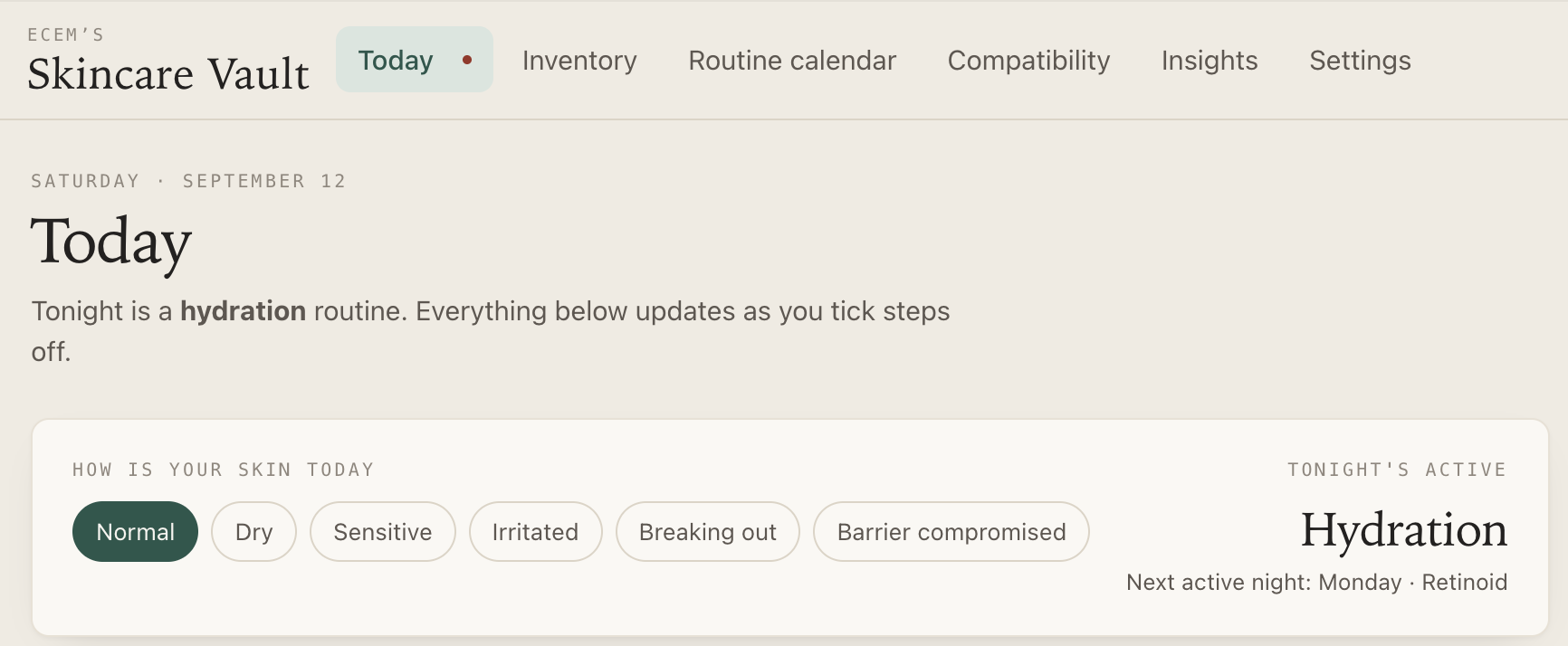
Build an interactive site you can use and share, much like Claude Artifacts.
Use it when: Your content would work better as a tool: a filterable comparison, a tracker, or a learning app. My skincare vault is one example.
Activate
Ask Codex to build a site or mention @Sites. Add the files or data it needs, then open the preview to try it.
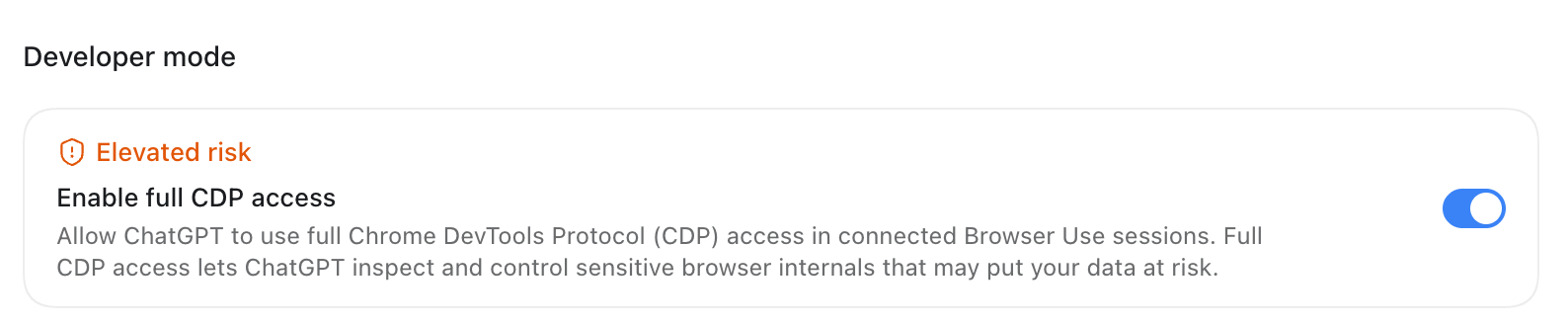
Developer Mode
Give Codex access to the live page’s console, network requests, DOM, and styles.
Use it when: A bug only appears in the running app, such as a failed request or broken layout. Ask it to reproduce the issue before fixing it.
Caveat: Full CDP access exposes sensitive browser internals. Enable it only for sessions you trust.
Activate
Go to Settings → Browser → Developer Mode and enable full CDP access. Open the page in Codex’s browser and ask it to inspect the issue.
I’m constantly experimenting with different tools, but working on this website in Codex has felt really smooth. I built it entirely with Codex and now maintain it here too.
Now, with the single AI system I rebuilt, I can use Claude Code and Codex on this website interchangeably. Both commit to the same GitHub repo and plug into the same flow, so I can experiment with each one and balance out session limits without re-explaining the project.